
Try the example, then check the result.
Quick answer: Select a cell showing ##### and check its value in the formula bar. If the date is intact, double-click the right edge of the column header to AutoFit; then confirm the original row values still match.
Download the fictional material and follow the steps below. The video includes 3 marked screenshots from the English app, with illustrative diagrams for the other steps. Product controls may vary by version.
Check the answer before applying the method to your own data. How we review guides ↗
Watch the complete lesson.
The video includes 3 marked screenshots from the English app, with illustrative diagrams for the other steps. English captions. Product menus may differ in your account.
Fix Excel cells that display ##### instead of a date or number. Diagnose a narrow column in a fictional order sheet, widen it, and check the real underlying value before changing formats.
Use the fictional practice data and answer check. Work in a copy.
Before you start
The companion video uses selected labelled captures from an English Excel for the web workbook with fictional data, alongside illustrative diagrams. Menu wording may vary with app version or account. Keep the source file available for comparison.
1. Start with a tiny order list
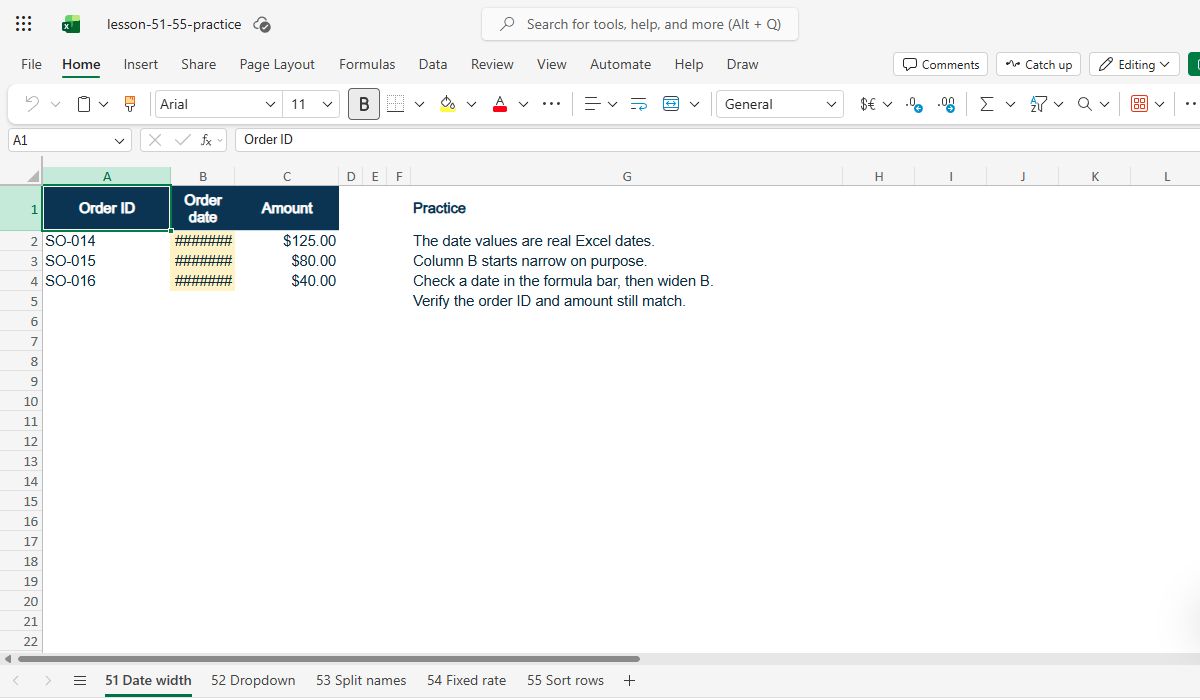
Open the fictional practice CSV in an Excel workbook. Check that the ISO strings in B2:B4 became date values; if not, enter 2026-10-08, 2026-10-09, and 2026-10-10 as dates. Format column B as a date and make it narrow enough to show hash marks. The three order IDs and amounts must stay paired with their dates. Keep a copy to compare each row after the fix.
Check: SO-014 to SO-016; Three October dates; Narrow the date column.
2. Inspect before you overwrite anything
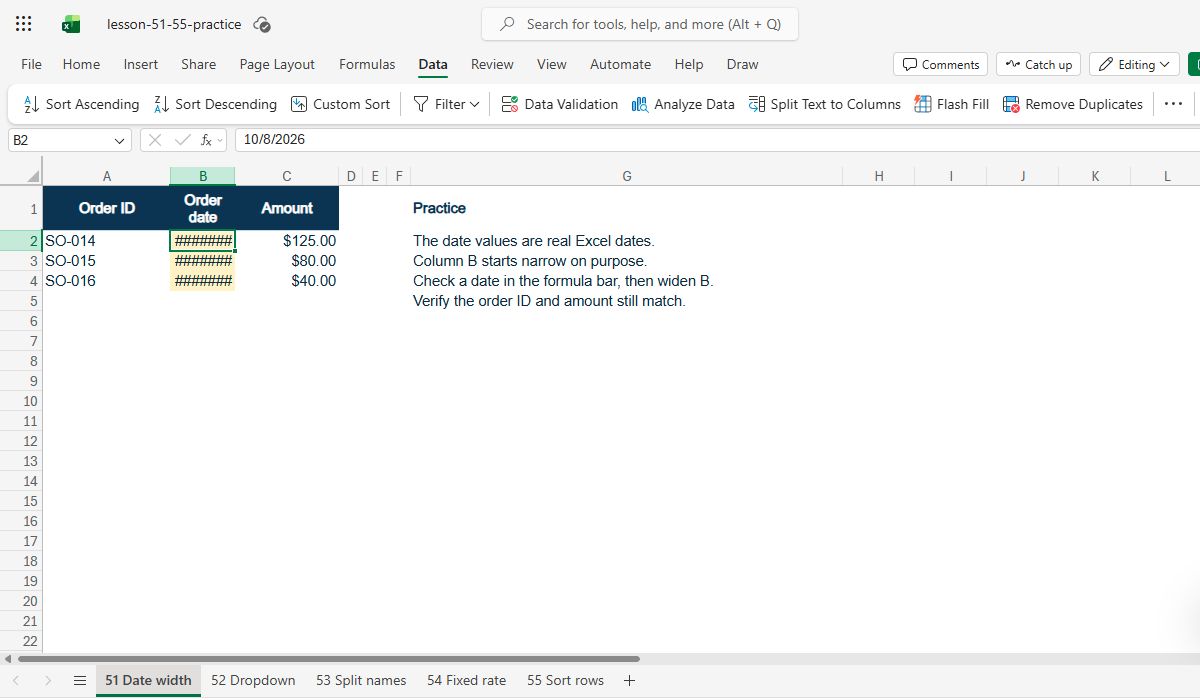
Select a hash-marked cell and read its value in the formula bar. If the underlying date is present, your first action is layout, not data replacement. Check another row as well: an entire narrow column can affect many records. If the formula bar itself contains an unexpected value, stop and investigate the source data before applying a visual fix.
Check: Select the cell; Read the formula bar; Check another row.
3. Widen the column in Excel
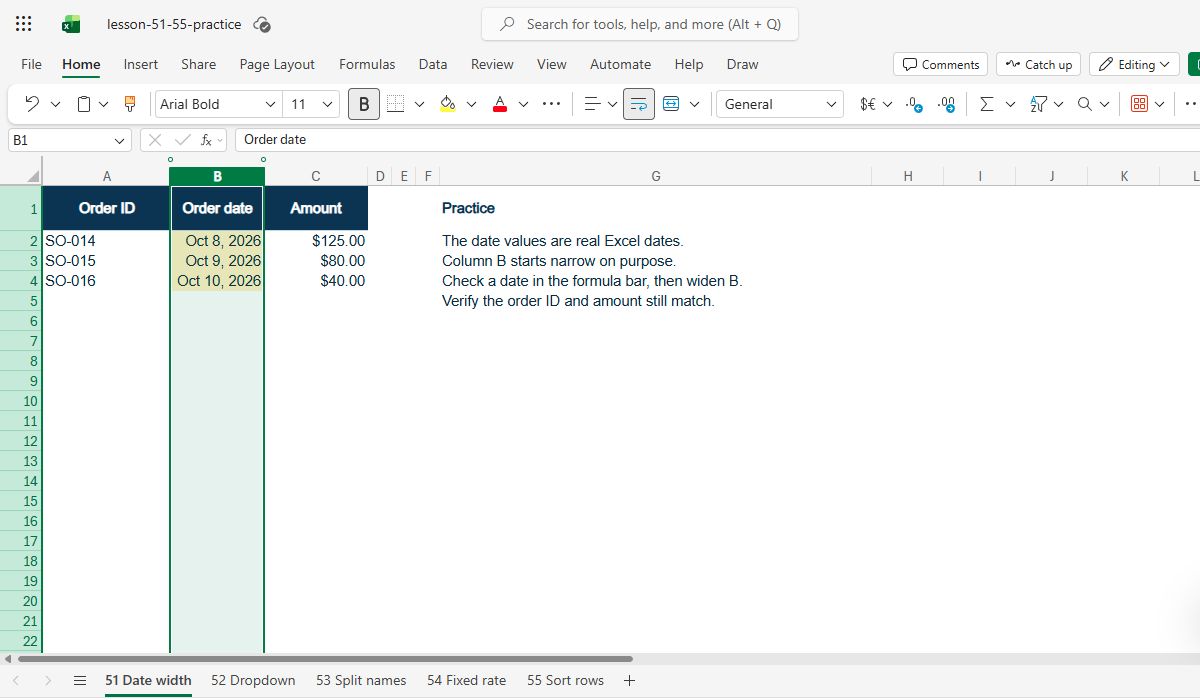
Move the pointer to the right boundary of the Order date column header and double-click to AutoFit its width. You can also drag that boundary wider. Excel should now reveal the date text without changing the cell value. On a narrow screen, use the column header boundary rather than changing the font size or deleting the date format.
Check: Double-click header boundary; AutoFit the date column; Do not replace the values.
4. Check the original row values
After widening, verify each Order ID / Order date / Amount row: SO-014 / 2026-10-08 / 125, SO-015 / 2026-10-09 / 80, and SO-016 / 2026-10-10 / 40. The width adjustment should affect appearance only. These row checks catch a separate problem such as an accidental sort that changed which date belongs to an order.
Check: SO-014 → Oct 8; SO-015 → Oct 9; SO-016 → Oct 10.
5. When widening does not help
Hash marks are not always caused by width. A negative date or time value can also render this way in Excel's date system. If the column is already wide and the problem remains, inspect the underlying value and number format. Check the formula that produced the date, especially subtraction across dates. Do not convert an erroneous negative date into text to disguise it.
Check: Wide column but still #####?; Inspect the formula; Check for negative date/time.
Expected result
The dates in B2:B4 remain 8, 9, and 10 October 2026 after widening the Order date column. No values change; only the display becomes readable.
Common mistakes
- Do not replace the dates with text merely to hide the hashes.
- If widening does not resolve the display, inspect the cell's underlying value and number format; negative date or time values require a different diagnosis.
- A CSV does not store column widths. Make the Date column narrow in a copy to reproduce the symptom.
Official references and evidence
References checked 15 October 2026. The sample and answer check are original fictional material. Marked video captures show the narrow date column, the selected cell's formula bar, and readable dates after widening in an English Excel for the web practice workbook. Other panels are illustrative diagrams. The captures verify these steps with fictional data, not every possible cause of ##### in a viewer's workbook.
Practice downloads.
The exercise files contain invented information. Save a local copy before editing.