
Try the example, then check the result.
Quick answer: Select the dropdown cell and inspect Data validation. For a direct cell-range list, extend its source to include the new item, apply the change, then open the dropdown and select the new value to confirm it works.
Download the fictional material and follow the steps below. The video includes 4 marked screenshots from the English app, with illustrative diagrams for the other steps. Product controls may vary by version.
Check the answer before applying the method to your own data. How we review guides ↗
Watch the complete lesson.
The video includes 4 marked screenshots from the English app, with illustrative diagrams for the other steps. English captions. Product menus may differ in your account.
Add a new source-list item to an Excel dropdown in Excel for the web. Check the validation source range, expand a cell-range list, and verify the new choice appears.
Use the fictional practice data and answer check. Work in a copy.
Before you start
The companion video uses selected labelled captures from an English Excel for the web workbook with fictional data, alongside illustrative diagrams. Menu wording may vary with app version or account. Keep the source file available for comparison.
1. Prepare the source list safely
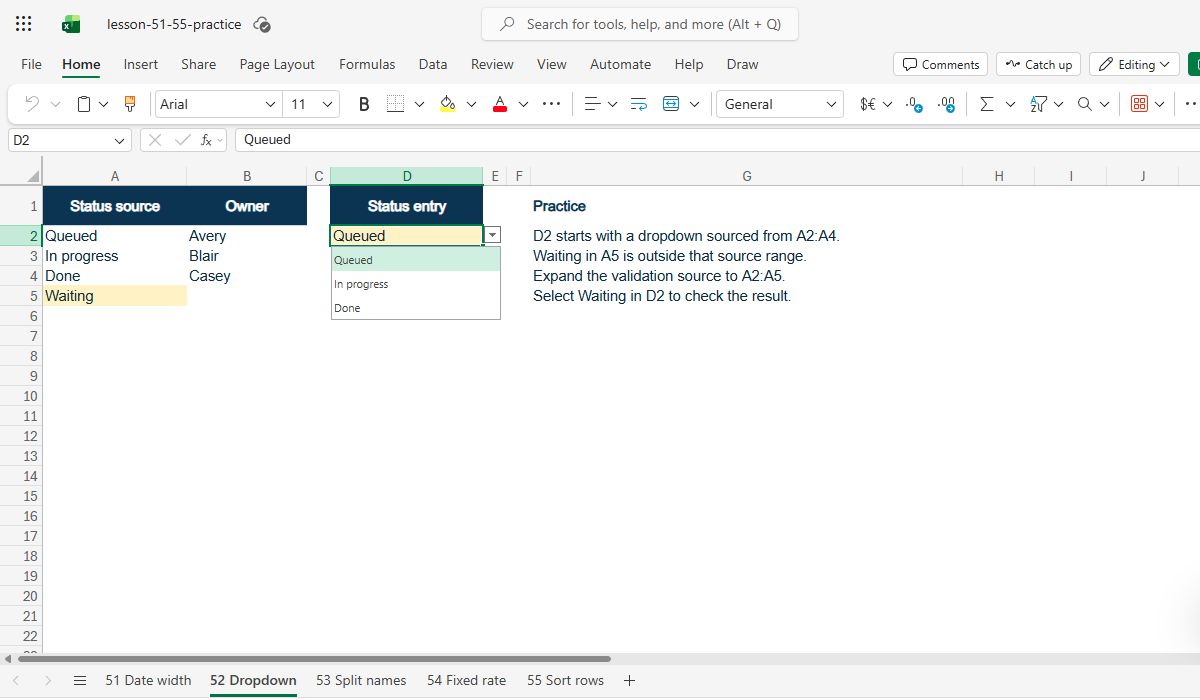
Paste the fictional CSV into a new workbook: statuses occupy A2:A4. In D2, create a dropdown from A2:A4 using Data validation. Test the three choices. Then type Waiting in A5, outside the original source range. The CSV supplies text, not a ready-made validation rule; D2 is the separate entry cell for this exercise.
Check: A2:A4 are the source; D2 is the dropdown; Add Waiting in A5.
2. Inspect the existing validation
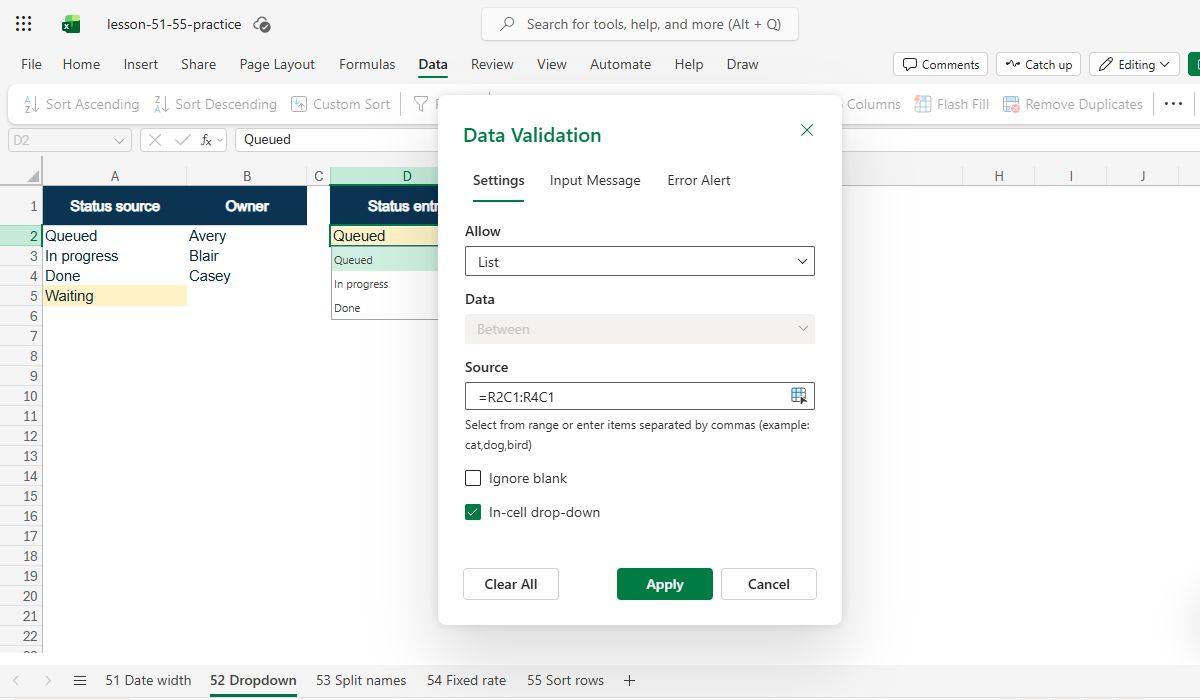
Select D2 and open its Data validation settings. Read the Source box instead of guessing which list powers the dropdown. In this exercise it refers to A2:A4, so Waiting in A5 remains outside the source. If your own Source box has typed entries or a named range, follow that source type's editing method; a named range may need desktop Excel.
Check: Select D2; Open Data validation; Read A2:A4 in Source.
3. Include the fourth source cell
For this direct cell-range source, reopen Data validation for D2. In Excel for the web, Microsoft's instructions say to clear the old Source entry, then select A2:A5 again so Waiting is included. Confirm the change. If this control is unavailable in your web session, use desktop Excel rather than claiming an unobserved web result.
Check: Old: A2:A4; New: A2:A5; Confirm validation.
4. Test the actual dropdown
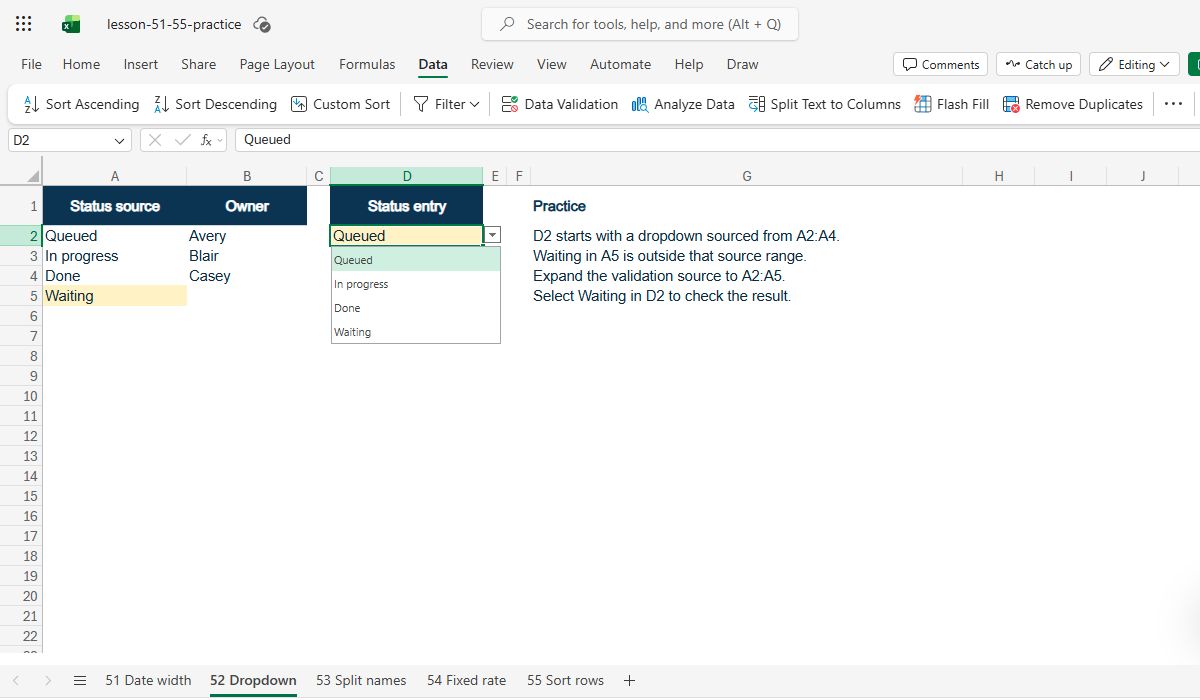
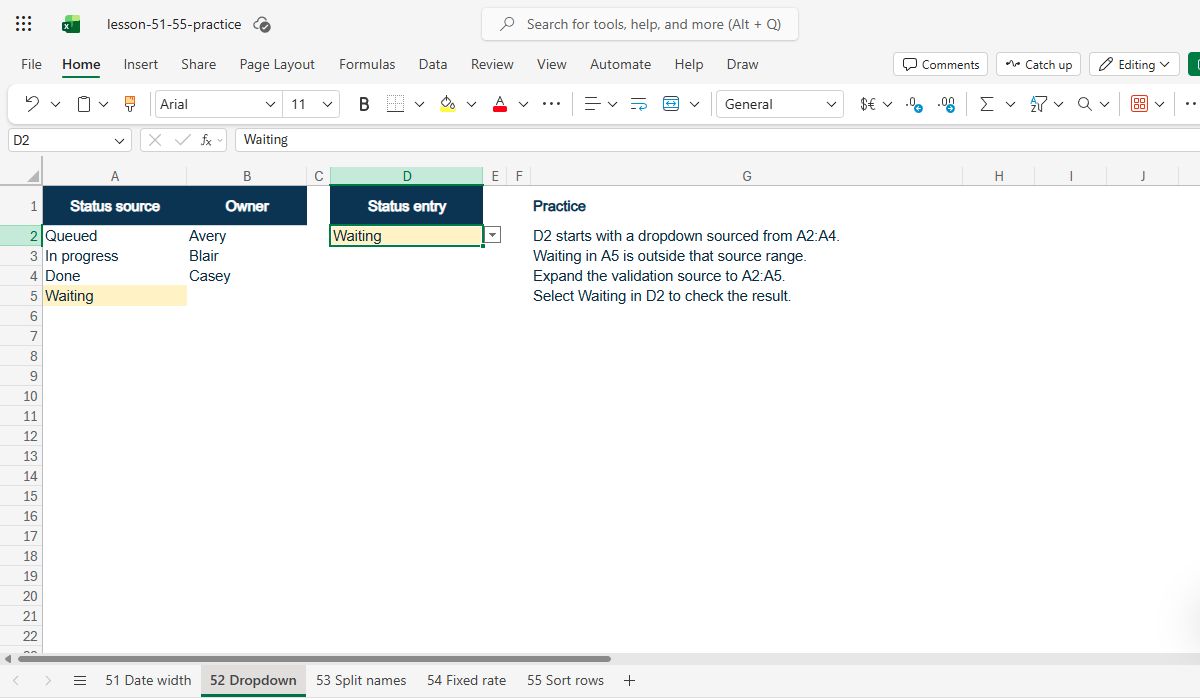
Return to D2 and open the dropdown. Verify that Queued, In progress, Done, and Waiting each appear once. Select Waiting and confirm D2 displays exactly that text. This is stronger than checking the source range alone: it proves the validation rule now points to the intended cells and the list works for the person entering data.
Check: Open D2 dropdown; Find Waiting; Select and read D2.
5. Know the web editor's limit
Excel lists can also be built from manually entered values or named ranges. Those are not the same editing path. In Excel for the web, Microsoft's current guidance supports changing a typed list or reselecting a direct cell-range source. For a named-range source, the help page directs you to the desktop version. Identify the source type first so you do not promise an unavailable web-only fix.
Check: Typed list: edit entries; Cell range: reselect range; Named range: desktop may be needed.
Expected result
In a workbook copy, a dropdown in D2 first uses A2:A4, then its source expands to A2:A5. D2 offers Queued, In progress, Done, and Waiting; selecting Waiting displays that exact text. The CSV supplies source text, not a preset validation rule.
Common mistakes
- Do not assume a value typed below a fixed source range enters the dropdown automatically.
- Excel for the web can edit a direct cell-range validation source by selecting the new range; a named-range source may require desktop Excel.
- Check that the new item is inside the chosen range and has no accidental trailing space.
Official references and evidence
References checked 15 October 2026. The sample and answer check are original fictional material. Marked video captures show the three-choice dropdown, its original Data Validation source, four choices after expansion, and Waiting selected in D2 in an English Excel for the web practice workbook. The Source field displays R1C1 notation (=R2C1:R4C1) for A2:A4. Other panels are illustrative diagrams; named-range and alternate-interface cases are not shown as live tests.
Practice downloads.
The exercise files contain invented information. Save a local copy before editing.