
Try the example, then check the result.
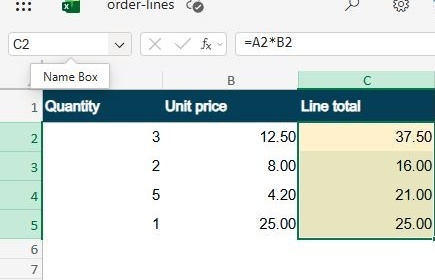
Quick answer: Enter =A2*B2 in C2, select C2:C5, then press Ctrl+D. Microsoft also documents Home > Fill > Down as a menu route. Check C2:C5: 37.50, 16.00, 21.00, and 25.00.
Download the fictional material and follow the steps below. The video includes 4 marked screenshots from the English app, with illustrative diagrams for the other steps. Product controls may vary by version.
Check the answer before applying the method to your own data. How we review guides ↗
Watch the complete lesson.
The video includes 4 marked screenshots from the English app, with illustrative diagrams for the other steps. English captions. Product menus may differ in your account.
Quick answer: Enter =A2*B2 in C2, select C2:C5, then press Ctrl+D. Microsoft also documents Home > Fill > Down as a menu route. Check C2:C5: 37.50, 16.00, 21.00, and 25.00.
Fill a line-total formula through four rows in Excel without dragging the fill handle, and check that relative references update correctly. Download the fictional practice and answer check. The optional CSV source may require separator settings in some locales; the .xlsx workbook is the primary exercise.
Before starting: Use the .xlsx practice workbook in Excel for the web. The optional comma-separated CSV can open in a single column under comma-decimal regional settings; if that happens, use the workbook rather than treating column A as quantity. Ctrl+D worked in the tested English Excel web session after selecting C2:C5; a browser may capture shortcuts when focus is outside the worksheet. Microsoft also documents Home > Fill > Down. Relative references change by row; dollar-anchored references behave differently.
1. Open the fictional order list
Open the practice Excel workbook, not the optional CSV. It has quantities in column A and unit prices in column B, regardless of your regional separator settings. Row two is three units at twelve dollars fifty; row three is two at eight dollars; row four is five at four dollars twenty; row five is one at twenty-five dollars. Column C begins empty. Confirm that you see three separate columns before adding a formula.
Checkpoint: A: quantity; B: unit price; C: line total.
2. Write the first formula
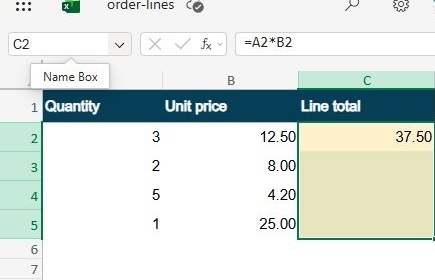
Click C two and enter equals A two times B two. That is written exactly as equals A two asterisk B two. The first line total should be thirty-seven dollars fifty. If it displays zero or an error, inspect A two and B two for text values before copying the formula. A bad first formula will be reproduced in every selected row.
Checkpoint: =A2*B2; Expected C2: 37.50; Fix source cells first.
3. Fill the selected range
Select C two through C five, including the formula cell at the top and the three empty destinations. With the worksheet focused, press Control D. In our English Excel web test, the four results appeared immediately. Microsoft also documents Home, Fill, Down as a menu route if your browser intercepts the shortcut. Do not select only the empty cells: Excel needs the source formula inside the selection.
Checkpoint: Select C2:C5; Press Ctrl+D; Home > Fill > Down is an alternative.
4. Inspect adjusted references
Click C three, then C four. Their formulas should refer to A three times B three and A four times B four, not keep pointing at row two. Those are relative references, so Excel adjusts them when filling down. The results are sixteen dollars and twenty-one dollars. C five should read twenty-five dollars. This cell-by-cell check catches an accidental fixed reference.
Checkpoint: C3: =A3B3; C4: =A4B4; C5: =A5*B5.
Check the finished result
Add the four line totals: thirty-seven fifty, sixteen, twenty-one, and twenty-five. They equal ninety-nine fifty. If yours differs, compare each row rather than changing the final sum until it matches. The answer check lists every formula and value. This lesson fills a simple relative formula; if a later exercise needs one fixed tax rate cell, that requires an absolute reference such as a dollar-anchored cell.
Expected answer: With quantities 3, 2, 5, 1 and prices 12.50, 8.00, 4.20, 25.00, the C2:C5 results are 37.50, 16.00, 21.00, and 25.00. The four totals sum to 99.50. The filled formulas should be =A2B2, =A3B3, =A4B4, and =A5B5, with each row referencing its own quantity and price.
If it still fails
If Ctrl+D does nothing, confirm the .xlsx workbook opened in three columns, C2 contains =A2*B2, and the selected range is C2:C5. Refocus the worksheet or use Home > Fill > Down.
Official references
Checked 16 October 2026. On-screen explanatory panels are labelled illustrative diagrams; any separately identified actual capture is a genuine English app view.
Practice downloads.
The exercise files contain invented information. Save a local copy before editing.