
Try the example, then check the result.
Download the fictional material and follow the steps below. The video includes 2 marked screenshots from the English app, with illustrative diagrams for the other steps. Product controls may vary by version.
Check the answer before applying the method to your own data. How we review guides ↗
Watch the complete lesson.
The video includes 2 marked screenshots from the English app, with illustrative diagrams for the other steps. English captions. Product menus may differ in your account.
Quick answer. Select the total cell and inspect its formula. If B6 contains =SUM(B3:B6), it includes itself. Change the end of the range to B5 and check that the three values 15, 28 and 7 total 50.
Open the fictional kit count CSV in an editable workbook copy, then use the answer check to compare the repaired total.
Before you start. This lesson uses a direct self-reference in a disposable workbook copy. Desktop Excel documents Formulas > Error Checking > Circular References; Excel for the web may not expose the full tracing menu. Do not claim that a warning always appears, or that iterative calculation is a general fix.
1. Start with the expected result
Our fictional workshop counted fifteen kits in the morning, twenty-eight in the afternoon, and seven in the evening. A correct total must be fifty. Before using Excel's warning, calculate that answer independently: fifteen plus twenty-eight is forty-three, plus seven is fifty. A known answer is the best guard against repairing the warning while keeping the wrong number.
Checkpoint: Expected total: 50 kits.
2. Place data so the total has a clear address
Open the practice CSV in a workbook copy and arrange the three numeric counts in B3, B4 and B5, with TOTAL in A6 and its formula in B6. A CSV does not preserve formulas, so type them in the workbook copy. Check those addresses before entering a bad formula; a one-row shift would change the demonstration.
Checkpoint: B3=15, B4=28, B5=7, total cell B6.
3. Create the error only in the copy
In B6, enter =SUM(B3:B6). The range begins with the morning value and ends with B6, the same cell that holds the formula. That makes B6 depend on its own result. Excel may show a circular reference alert, an unexpected zero, a previous value, or a status indicator depending on version and calculation settings. Do not use any displayed zero as a real kit count.
Checkpoint: Bad formula includes B6 itself.
4. Inspect the formula, not only the warning
Select B6 and read the formula bar. Highlight the range B3:B6 mentally or with Excel's reference coloring. The last address is B6. That is enough to explain the loop: Excel needs the total to compute the total. In Excel for the web, this direct inspection is more dependable than assuming a desktop Formulas menu exists.
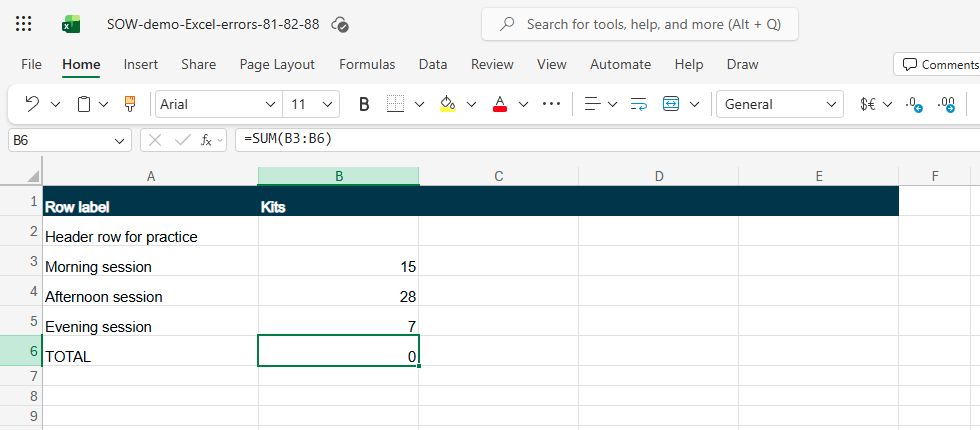
Checkpoint: Last range address equals formula cell.
5. Use desktop tracing only where available
Microsoft documents Formulas, Error Checking, Circular References in desktop Excel. That menu can list the circular cell and help trace larger chains. Some Excel web builds do not expose the same auditing controls. If the menu is unavailable, do not invent it; use the known B6 formula in this practice file, or open a copy in desktop Excel when you need full tracing.
Checkpoint: Desktop command is optional for this tiny case.
6. Fix the exact boundary
Edit B6 to =SUM(B3:B5). Now the range stops at the last source value, evening session, and excludes the total row. Press Enter. The corrected formula is not just shorter: it removes the self-reference while preserving all three counted sessions. Avoid changing the kit numbers to force a desired total; they were already correct.
Checkpoint: Exact corrected formula: =SUM(B3:B5).
7. Check the result in two ways
Read B6: it should show fifty. Then compare with the independent arithmetic, fifteen plus twenty-eight plus seven. Also inspect B3:B5 to confirm none of the inputs moved or changed while the formula was edited. If a circular warning remains, another formula or workbook may still contain a loop; this single corrected cell is not proof that every workbook issue is gone.
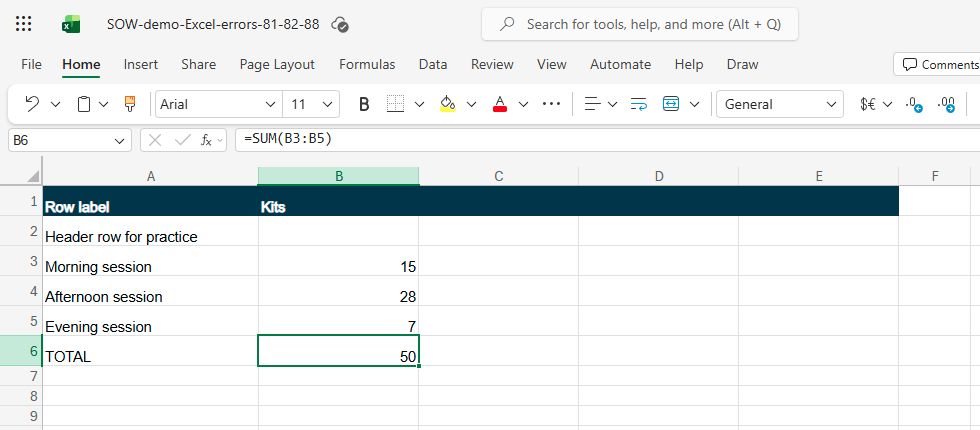
Checkpoint: B6=50 and source rows unchanged.
8. Avoid a tempting workaround
Excel can allow iterative calculation for specific models, but enabling it is not the right repair for an accidentally self-including total. It changes calculation behavior across the workbook and may conceal the simple boundary mistake. Leave calculation settings alone for this exercise and make the formula reference only the intended input cells.
Checkpoint: Do not enable iteration to hide this error.
9. Troubleshoot a different circular path
Not every circular reference is direct. One formula can point to a second cell that points back to the first. This lesson's formula-bar method proves the direct B6 example only. For a larger indirect loop, use the desktop tracing tools Microsoft documents or inspect dependencies on a copy. Do not claim that changing B6 will solve an unrelated chain elsewhere.
Checkpoint: Scope: one direct self-reference.
10. Finish with the exact answer check
The final practice sheet has the original three fictional session values and one total. B3 is fifteen, B4 is twenty-eight, B5 is seven, and B6 is fifty with =SUM(B3:B5). No circular input is included in the range. Save the corrected copy and compare it with the answer check before applying a similar change to a real workbook.
Checkpoint: 15 + 28 + 7 = 50; no self-reference.
Verify the result
Place the three numeric kit counts in B3:B5 and total in B6. The deliberate bad formula =SUM(B3:B6) refers to B6 itself and is circular. The corrected formula =SUM(B3:B5) returns 50. Every source row remains 15, 28 and 7. The exact warning text may vary by Excel version; the formula-bar diagnosis does not require a particular warning dialog.
If it still does not work
If B6 still shows zero or a circular warning after the edit, inspect the exact formula bar text: the total must be =SUM(B3:B5), not a range ending at B6. Verify that B3, B4 and B5 are the numeric values 15, 28 and 7. If the corrected B6 still depends on itself through another cell, trace those intermediate references on the practice copy; the direct-range fix does not repair an indirect loop. Do not enable iterative calculation just to suppress the symptom.
Official sources
- Microsoft Excel product guidance (checked 16 October 2026).
- Microsoft Excel product guidance (checked 16 October 2026).
Video panels without a marked actual-app capture are illustrative diagrams of the fictional exercise.
Practice downloads.
The exercise files contain invented information. Save a local copy before editing.