
Try the example, then check the result.
Download the fictional material and follow the steps below. The video includes 3 marked screenshots from the English app, with illustrative diagrams for the other steps. Product controls may vary by version.
Check the answer before applying the method to your own data. How we review guides ↗
Watch the complete lesson.
The video includes 3 marked screenshots from the English app, with illustrative diagrams for the other steps. English captions. Product menus may differ in your account.
Quick answer. If you just deleted a referenced column, immediately press Ctrl+Z in the working copy. Confirm the column and its values return, then check the total. Editing #REF out of the formula does not restore deleted data.
Open the fictional quarterly orders CSV in a disposable Excel workbook copy. Add the total formula before deleting a column, then use the answer check to verify the restored data and total; CSV files do not preserve formulas.
Before you start. Undo is the demonstrated path immediately after the deletion. A saved, closed, or edited workbook may require version history or a backup; this guide does not promise reconstruction from #REF alone. Deleting an entire sheet has different recovery limits.
1. Make a disposable copy
Open the fictional CSV in Excel and save it as a workbook copy. The one row contains forty January kits, fifty February kits, and sixty March kits. Enter =SUM(B2,C2,D2) in E2 and confirm the total is one hundred fifty before changing anything.
Checkpoint: Keep the original CSV; E2=150.
2. Reproduce the broken reference
In the disposable copy only, delete the entire February column C. Excel shifts March and the total left, and the explicit reference to deleted C2 can become #REF! in the formula. Select the error cell and read the formula bar so you know which reference broke.
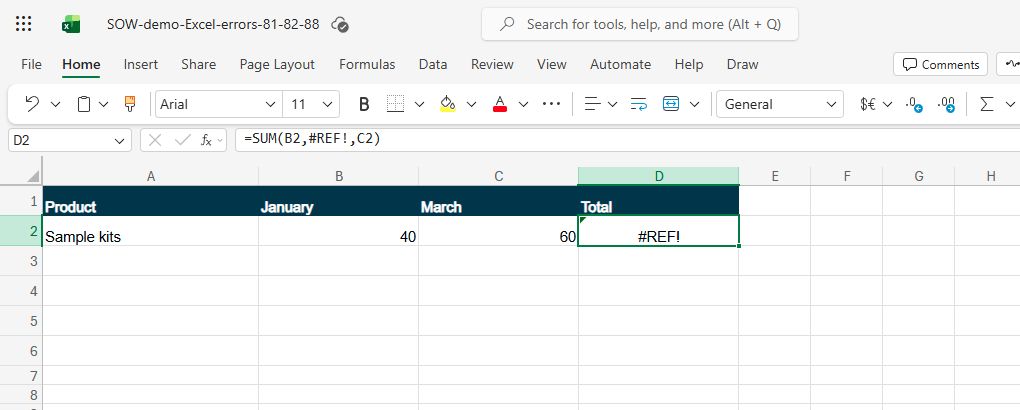
Checkpoint: Look for #REF! in the formula, not just a red cell.
3. Undo the deletion immediately
Press Control and Z once, or use Excel's Undo control, before making unrelated edits. The February column and its fifty kits should return. Select the total cell again; the original three-month formula should evaluate to one hundred fifty. This is the safest recovery when the deletion just happened.
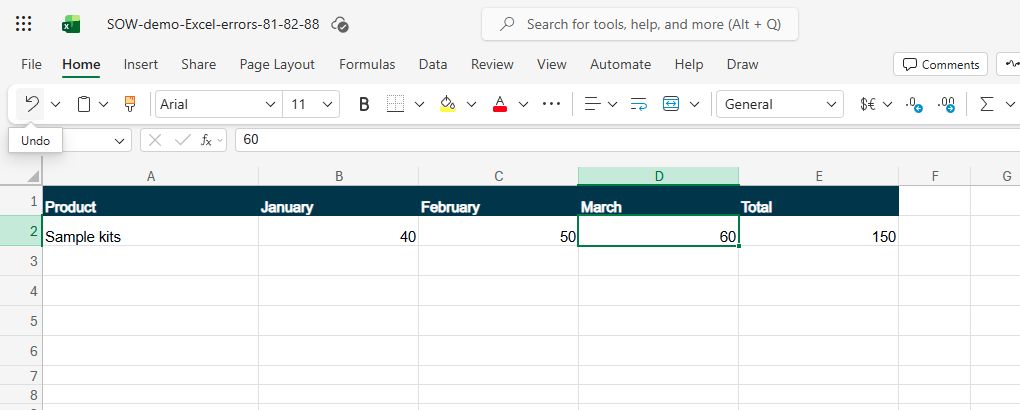
Checkpoint: February=50; total=150 after Undo.
4. Do not mistake a formula edit for data recovery
You could remove #REF! from the formula and add only the remaining months. That would produce one hundred, but fifty February kits would still be missing. A continuous range formula can sometimes avoid a broken reference when an interior column is deleted, yet it cannot bring the deleted values back.
Checkpoint: No #REF! does not prove the original data is complete.
5. If Undo is no longer available
Stop editing the only copy. Compare with the original CSV, a version history entry, or a backup and recover the missing source column first. Then recheck the formula and all three month values. Do not invent a February value from the current total or promise an automatic fix.
Checkpoint: Recover source values, then verify 40+50+60=150.
Verify the result
The untouched sample total is 150. In a workbook copy, =SUM(B2,C2,D2) becomes a #REF! formula after deleting February column C. Immediate Undo restores the February 50 and the 150 total. Rewriting the formula without restoring the month would yield only 100, which is not the intended recovery.
If it still does not work
If Undo does not restore February, stop editing the disposable copy and look for a trusted earlier workbook version or original CSV. A changed formula alone cannot recreate deleted data. Restore the February value 50 from that source, then verify January 40, February 50, March 60 and the total 150. If #REF! remains, select the total cell and replace only the broken reference after checking all three source cells.
Official sources
- Microsoft Excel product guidance (checked 16 October 2026).
Video panels without a marked actual-app capture are illustrative diagrams of the fictional exercise.
Practice downloads.
The exercise files contain invented information. Save a local copy before editing.