
Try the example, then check the result.
Download the fictional material and follow the steps below. The video includes 4 marked screenshots from the English app, with illustrative diagrams for the other steps. Product controls may vary by version.
Check the answer before applying the method to your own data. How we review guides ↗
Watch the complete lesson.
The video includes 4 marked screenshots from the English app, with illustrative diagrams for the other steps. English captions. Product menus may differ in your account.
Quick answer. In a copy, select the full four-column range including headers, sort Updated descending with Data > Custom Sort, verify chronological order, then use Data > Remove Duplicates with only Order ID as the key. The practice CSV uses fixed-width ISO text dates (YYYY-MM-DD), whose text order matches date order here; convert other text date formats if needed. Excel keeps the first matching row.
Use the fictional practice file and independent answer check. Work in a copy or a permitted demo account.
Before you start. Remove Duplicates deletes rows in the working selection. Use a disposable workbook copy and select the full four-column range with headers for both sorting and deduplication. The fictional CSV's fixed-width YYYY-MM-DD text sorts chronologically in the tested workbook, but other text date formats may not; verify the order and convert to real dates when needed. Select only Order ID as the comparison key. This is a one-time cleanup, not an automatically updating formula.
1. Identify the row that actually matters
Open the fictional CSV in an Excel for the web workbook copy. Read both SO-104 rows and both SO-105 rows. SO-104 changes from Draft on April second to Paid on April eighth. SO-105 changes from Paid on April third to Refunded on April ninth. Removing an arbitrary duplicate would retain an obsolete status, even though the order IDs look tidy.
Checkpoint: Six rows; two IDs repeat with different statuses.
2. Protect the source and check the date order
Keep the original CSV and work only in a copy. Select the full four-column range including its headers so a sort moves each complete row. The tested practice workbook kept Updated as fixed-width ISO text in YYYY-MM-DD form; that text order matches chronological order for these six values. Microsoft cautions that other dates stored as text may sort alphabetically into the wrong chronology. Inspect the top and bottom dates after sorting, and convert text to real dates if the format or order is unreliable.
Checkpoint: Full range selected; ISO date order checked.
3. Put the newest record first
With the full four-column range selected, open Data > Custom Sort. Sort by Updated, Cell Values, Sort Descending; keep My data has headers selected. Read the top sequence: April tenth, ninth, eighth, fifth, third, second. Check that Order ID, Status, and Amount values moved with each date. The first SO-105 row should now say Refunded, while its older Paid row is lower.
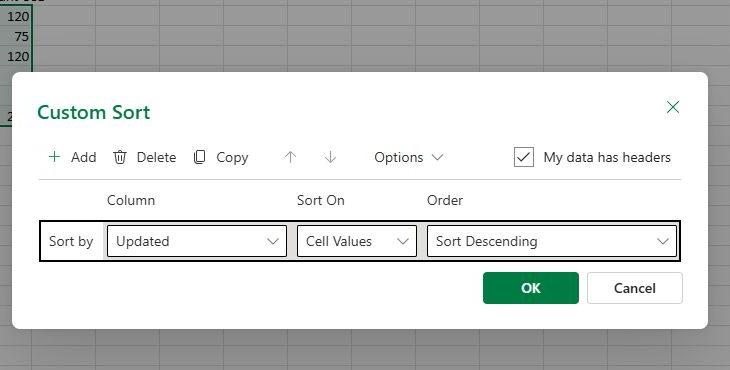
Actual app capture · fictional workbook. Excel for the web's Custom Sort dialog uses Updated and Sort Descending for the newest-first date order. Open full-size capture.
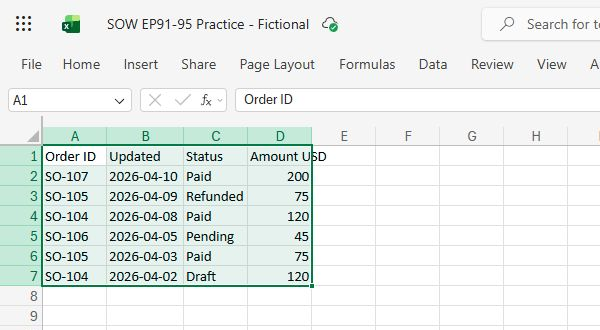
Actual app capture · fictional workbook. All six rows remain after sorting; SO-107 is first, while the older SO-105 and SO-104 rows are below their newer updates. Open full-size capture.
Checkpoint: Newest-to-oldest sequence; all six rows intact.
4. Remove duplicates by Order ID only
Select the full sorted four-column range, then use Data > Remove Duplicates. Leave Order ID selected as the sole comparison column and clear Updated, Status, and Amount. Confirm. Microsoft's documentation says the first occurrence of a matching key is kept and the other complete rows are removed; Excel for the web supports this control. Do not choose all four columns, because those six rows are not identical across all fields.
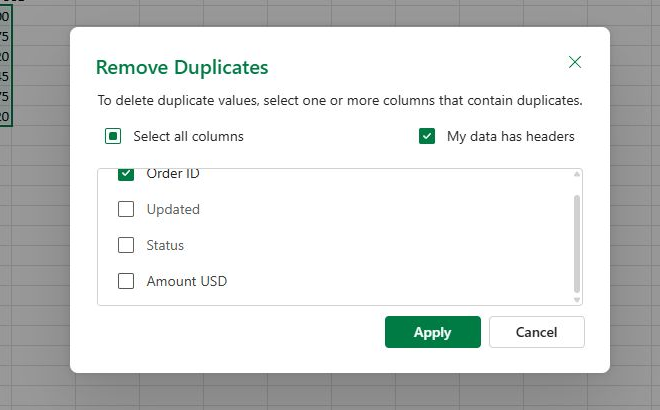
Actual app capture · fictional workbook. Only Order ID is checked; Updated, Status and Amount USD are unchecked. Open full-size capture.
Checkpoint: Order ID is the only checked key; two complete rows removed.
5. Verify the statuses, not only the row count
Read the four surviving orders against the answer check. SO-105 must be Refunded dated April ninth, and SO-104 must be Paid dated April eighth. SO-107 stays Paid for two hundred dollars; SO-106 stays Pending for forty-five. If either older status survived, Undo in the practice copy, verify the date sort, then repeat the ID-only cleanup.
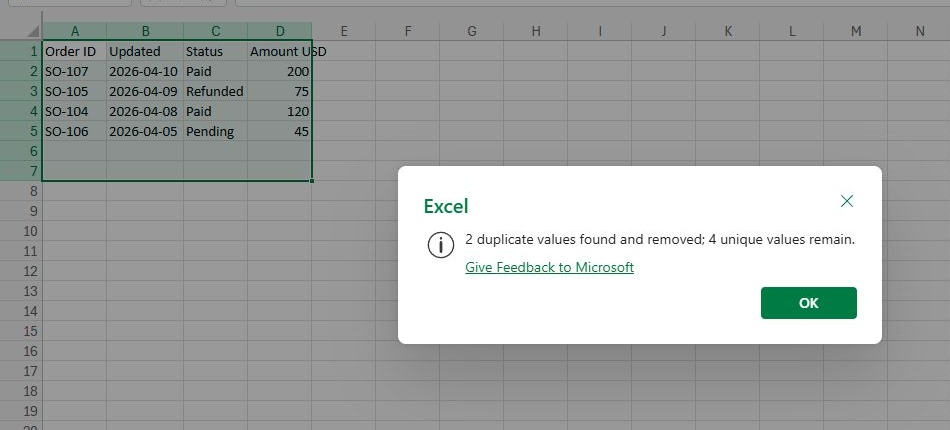
Actual app capture · fictional workbook. The result dialog reports two duplicates removed and four unique values remaining; the four retained practice rows are visible behind it. Open full-size capture.
Checkpoint: Four unique IDs with the newest status for each.
6. Know when this method needs another rule
If two updates have the exact same timestamp, decide a secondary tie-breaker before deleting either row; this practice file has no tie. If new history arrives later, repeat the process on a new copy or design a separate refreshable workflow. Do not describe this one-time Remove Duplicates action as live synchronization.
Checkpoint: No tie in the practice data; no automatic refresh claim.
Verify the result
Expected in the fictional practice: six source rows contain four distinct order IDs. After sorting Updated newest to oldest and removing duplicates using Order ID alone, four complete rows should remain in this order: SO-107 / 2026-04-10 / Paid / 200; SO-105 / 2026-04-09 / Refunded / 75; SO-104 / 2026-04-08 / Paid / 120; SO-106 / 2026-04-05 / Pending / 45. Excel should report two duplicate rows removed. SO-105 must not revert to Paid, and SO-104 must not revert to Draft. The untouched original remains six rows.
If it still does not work
Remove Duplicates deletes rows in the working selection. Use a disposable workbook copy and select the full four-column range with headers for both sorting and deduplication. The fictional CSV's fixed-width YYYY-MM-DD text sorts chronologically in the tested workbook, but other text date formats may not; verify the order and convert to real dates when needed. Select only Order ID as the comparison key. This is a one-time cleanup, not an automatically updating formula.
Official sources
- Filter for unique values or remove duplicate values in Excel (checked 20 October 2026).
- Sort data in a range or table in Excel (checked 20 October 2026).
Any video panel without a marked actual-app capture is an illustrative diagram of the fictional exercise.
Practice downloads.
The exercise files contain invented information. Save a local copy before editing.