
Try the example, then check the result.
Quick answer: Select the whole table, including headers, before sorting by Due date. After sorting, compare each order ID with its original customer and amount; undo immediately if those pairings changed.
Download the fictional material and follow the steps below. The video includes 3 marked screenshots from the English app, with illustrative diagrams for the other steps. Product controls may vary by version.
Check the answer before applying the method to your own data. How we review guides ↗
Watch the complete lesson.
The video includes 3 marked screenshots from the English app, with illustrative diagrams for the other steps. English captions. Product menus may differ in your account.
Sort an Excel order list by date without separating IDs, contacts, and amounts. Follow a fictional four-row check and recover safely with Undo if one column was sorted alone.
Use the fictional practice data and answer check. Work in a copy.
Before you start
The companion video uses selected labelled captures from an English Excel for the web workbook with fictional data, alongside illustrative diagrams. Menu wording may vary with app version or account. Keep the source file available for comparison.
1. Capture the original relationships
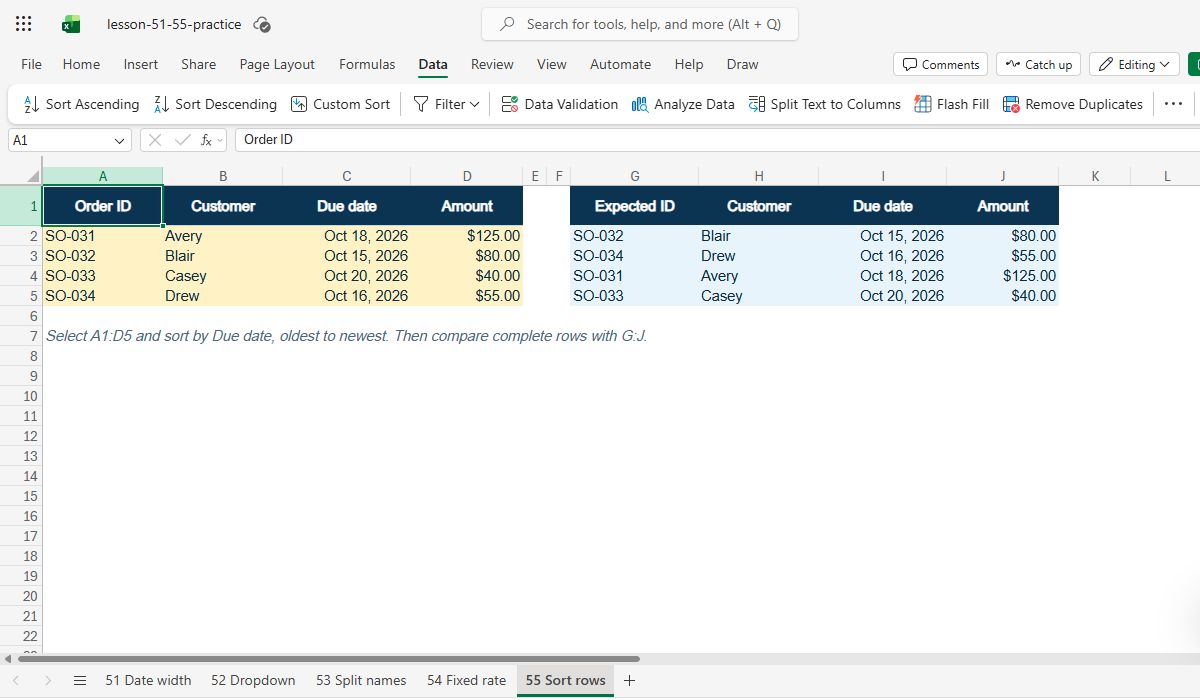
The practice CSV contains four orders: SO-031 / Avery / 125, SO-032 / Blair / 80, SO-033 / Casey / 40, and SO-034 / Drew / 55. These relationships are the answer key. Import a copy into Excel and keep the source file untouched so you can recover if a partial-column sort changes a pairing.
Check: Four order IDs; Four matching customers; Keep an untouched copy.
2. Select the full data range
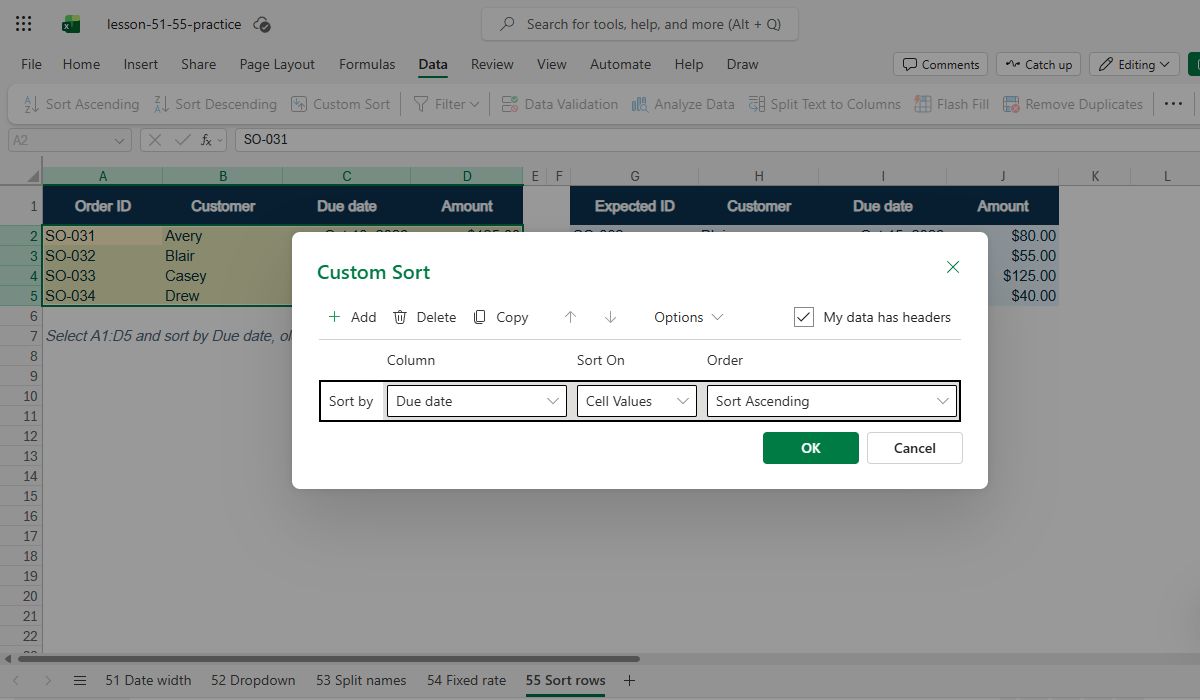
Click inside the data or select A1:D5, including the header row. In Excel, use Data > Sort, choose Due date as the sort key, and order oldest to newest. A table object can help keep columns together, but the essential rule is that the sort range contains every field belonging to each record.
Check: Select all columns; Sort by Due date; Oldest to newest.
3. Respond to a partial-selection warning
If you had selected only date cells, Excel may ask whether to expand the selection. For this exercise, choose Expand the selection so IDs, customers, dates, and amounts move together. If the prompt does not appear, cancel and explicitly select the entire data block before sorting. Do not choose Continue with the current selection unless you intentionally want to detach the dates.
Check: Choose Expand the selection; Or cancel and reselect all columns; Do not detach dates.
4. Read the expected sorted order
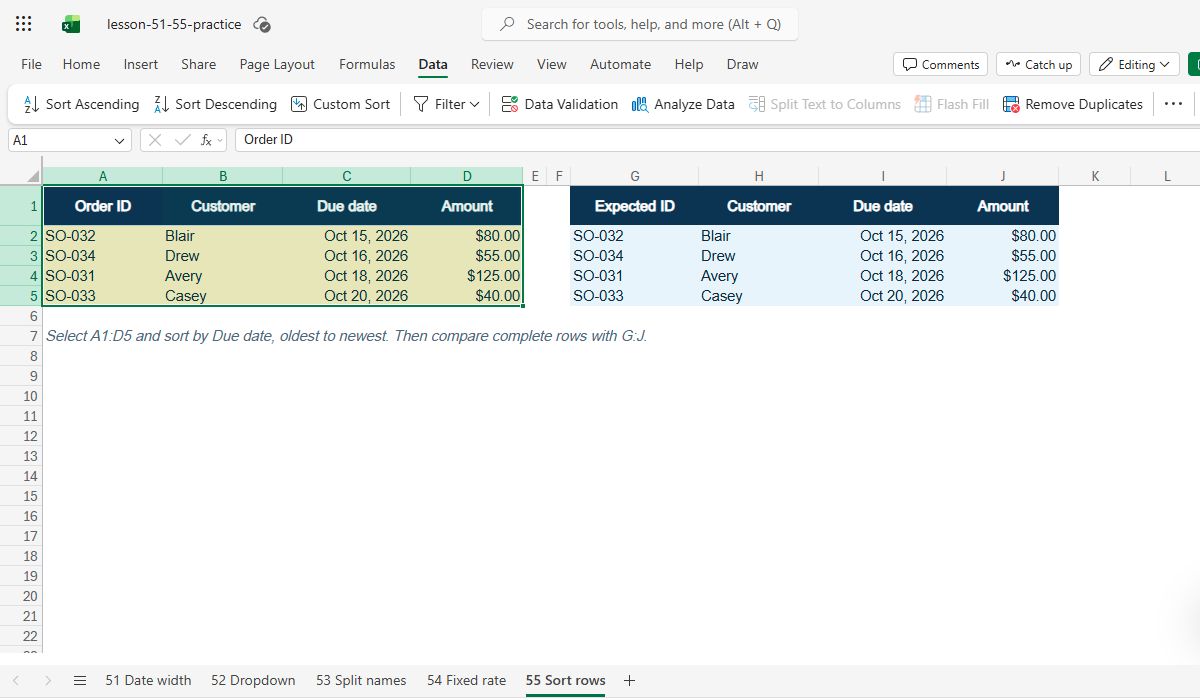
The ascending dates are 2026-10-15 (SO-032 / Blair / 80), 2026-10-16 (SO-034 / Drew / 55), 2026-10-18 (SO-031 / Avery / 125), and 2026-10-20 (SO-033 / Casey / 40). Compare the amounts along with the IDs. Seeing dates in order is necessary but insufficient: the customer and amount must still travel with their original order ID.
Check: SO-032 → Oct 15; SO-034 → Oct 16; SO-031 → Oct 18.
5. Recover if the rows got mixed
If the order-to-customer relationships have changed, use Undo immediately while the sort remains the most recent action. If you have already made more changes, compare each row to the untouched source CSV or restore a previous workbook copy. Do not guess which amount belongs to which order from the sorted dates. The safe outcome is confirmed by keys, not by how tidy the sheet looks.
Check: Undo a bad sort; Compare to untouched CSV; Verify keys before sharing.
Expected result
Ascending due date order is SO-032/Blair/Oct 15/80, SO-034/Drew/Oct 16/55, SO-031/Avery/Oct 18/125, SO-033/Casey/Oct 20/40. Each row remains intact.
Common mistakes
- Sorting only the Due date column can pair a date with the wrong order.
- If Excel warns about a partial selection, choose Expand the selection for this table, or cancel and select the full range explicitly.
- Undo immediately if row relationships changed; compare against the untouched source CSV.
Official references and evidence
References checked 15 October 2026. The sample and answer check are original fictional material. Marked video captures show the original four-row order table, the English Custom Sort settings, and the sorted table with row pairings intact. Other panels are illustrative diagrams; a partial-selection warning and Undo recovery are explained, not shown as live tests.
Practice downloads.
The exercise files contain invented information. Save a local copy before editing.