
Try the example, then check the result.
Download the fictional material and follow the steps below. The video includes 3 marked screenshots from the English app, with illustrative diagrams for the other steps. Product controls may vary by version.
Check the answer before applying the method to your own data. How we review guides ↗
Watch the complete lesson.
The video includes 3 marked screenshots from the English app, with illustrative diagrams for the other steps. English captions. Product menus may differ in your account.
Quick answer. Put the client name in G2 and enter =FILTER(A2:D6,B2:B6=G2,"No matching orders") in a clear output area. FILTER spills all matching rows; XLOOKUP ordinarily returns one match.
Regional formula separator. This guide uses the comma separator common in US Excel. If your Excel regional settings require semicolons, enter =FILTER(A2:D6;B2:B6=G2;"No matching orders") instead. The semicolon version produced the same three-row result in our fictional Excel for the web practice sheet.
Use the fictional practice file and independent answer check. Work in a copy or a permitted demo account.
Before you start. FILTER is available in supported modern Excel versions and the demonstrated Microsoft 365 environment; legacy Excel may lack it. Its output spills into adjacent cells, so the output area must be empty. The fixed A2:D6 and B2:B6 ranges cover only the five-row practice file; expand them or use an Excel table for growing real data. This lesson does not edit or replace the source rows.
1. See why one lookup is not enough
Open the fictional five-row client order list in an Excel workbook copy. North Pier appears on three separate orders: design, support, and consulting. A first-match lookup can answer which one matching record it found; it is not a complete history. The required result is three rows with all four original columns.
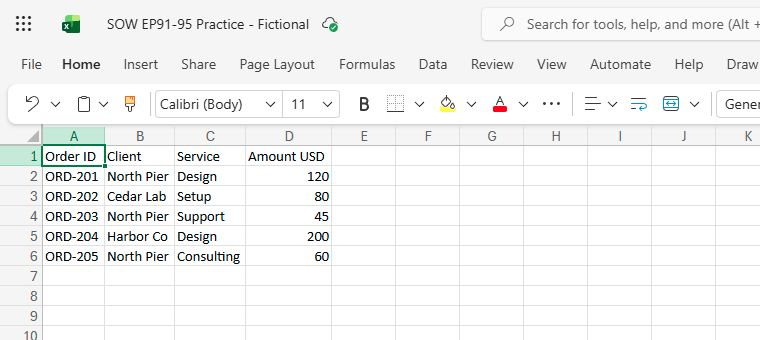
Actual app capture · fictional workbook. The source has five rows, including three separate North Pier orders. Open full-size capture.
Checkpoint: Three North Pier orders among five source rows.
2. Prepare a clean result area
Keep the source range A1:D6 intact. Type Client to find in F2 and North Pier in G2. Leave a four-column by three-row output area starting at F4 empty. A dynamic array formula needs room to spill; a blocking value can produce a spill error instead of the intended rows.
Checkpoint: G2=North Pier; F4:I6 empty before formula.
3. Return every matching row
In F4 enter =FILTER(A2:D6,B2:B6=G2,"No matching orders"). The first argument contains all four data columns; the second tests Client in each corresponding source row against G2. Microsoft documents that FILTER returns rows meeting the condition and spills the result. Do not select only the Order ID column or the rest of each record will be lost.
Checkpoint: Three complete rows spill into F4:I6.
4. Check records and the independent total
Read the three spilled IDs in order: ORD-201, ORD-203, ORD-205. Their services are Design, Support, and Consulting; their amounts are one hundred twenty, forty-five, and sixty dollars. Add the amounts separately to get two hundred twenty-five dollars; that total is an independent check, not a fourth FILTER output row. Confirm ORD-202 and ORD-204 are absent because their clients differ.
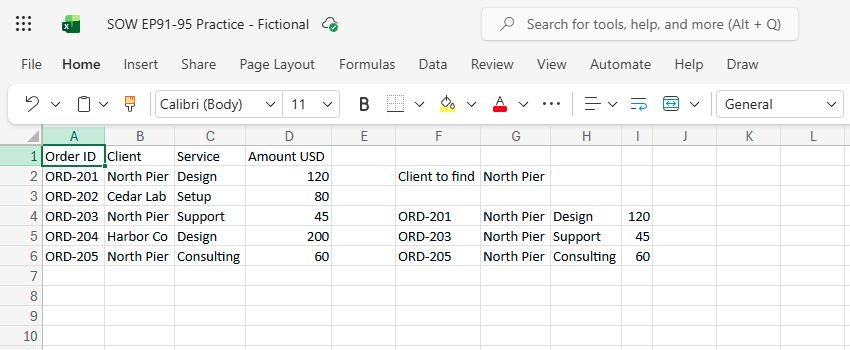
Actual app capture · fictional workbook. FILTER returns three complete North Pier orders in F4:I6. The $225 total is calculated separately from those amounts; it is not part of the spill. Open full-size capture.
Checkpoint: 3 spilled rows; separate sum 120+45+60=225; no unrelated client.
5. Try a no-match client
Replace G2 with Missing Client. The optional if_empty argument makes the output say No matching orders instead of showing a calculation error for zero matches. Restore North Pier when done and confirm the same three records return. This checks that the query cell actually controls the result.
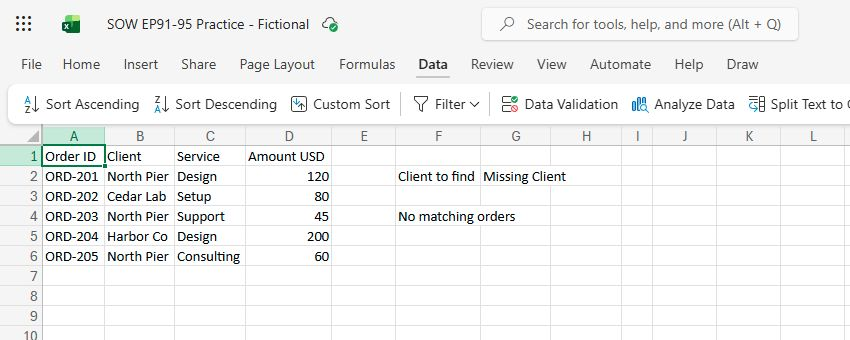
Actual app capture · fictional workbook. Changing the query to Missing Client displays the specified no-match message while the five source orders remain unchanged. Open full-size capture.
Checkpoint: No-match text appears; restoring North Pier restores three rows.
6. Avoid two common range mistakes
If only one row appears, inspect whether you used a lookup instead of FILTER or accidentally shortened A2:D6. If you see a spill error, clear only the intended output area, not the source table. When new source orders are added after row six, expand both range arguments together or use a named table; the exercise formula does not discover extra rows automatically.
Checkpoint: Source unchanged; formula and include ranges have matching heights.
Verify the result
Expected in the fictional practice: with G2 = North Pier, FILTER should return ORD-201 / Design / 120, ORD-203 / Support / 45, and ORD-205 / Consulting / 60 as three complete rows; their amount check is 225. Cedar Lab and Harbor Co should not appear. With G2 = Missing Client, the output should read No matching orders rather than an error. The five source rows should stay unchanged.
If it still does not work
FILTER is available in supported modern Excel versions and the demonstrated Microsoft 365 environment; legacy Excel may lack it. Its output spills into adjacent cells, so the output area must be empty. The fixed A2:D6 and B2:B6 ranges cover only the five-row practice file; expand them or use an Excel table for growing real data. This lesson does not edit or replace the source rows.
Official sources
- FILTER function in Excel (checked 20 October 2026).
- XLOOKUP function in Excel (checked 20 October 2026).
Any video panel without a marked actual-app capture is an illustrative diagram of the fictional exercise.
Practice downloads.
The exercise files contain invented information. Save a local copy before editing.