
Try the example, then check the result.
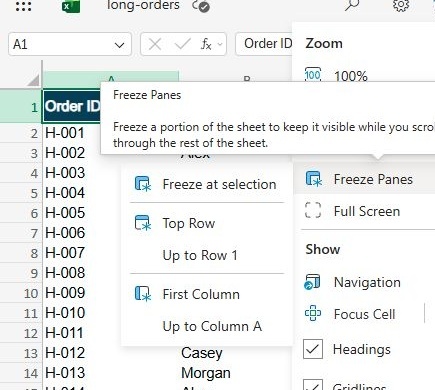
Quick answer: In Excel for the web, use View > Freeze Panes > Top Row. Scroll to row 35 and confirm Order ID, Owner, and Status remain at the top. If your menu only offers a generic Freeze Panes command, select A2 first. View > Freeze Panes > Unfreeze Panes reverses the setting.
Download the fictional material and follow the steps below. The video includes 2 marked screenshots from the English app, with illustrative diagrams for the other steps. Product controls may vary by version.
Check the answer before applying the method to your own data. How we review guides ↗
Watch the complete lesson.
The video includes 2 marked screenshots from the English app, with illustrative diagrams for the other steps. English captions. Product menus may differ in your account.
Quick answer: In Excel for the web, use View > Freeze Panes > Top Row. Scroll to row 35 and confirm Order ID, Owner, and Status remain at the top. If your menu only offers a generic Freeze Panes command, select A2 first. View > Freeze Panes > Unfreeze Panes reverses the setting.
Freeze the first row of a long fictional Excel list, check the header at row 35, and unfreeze it when needed. Download the fictional practice and answer check. The optional CSV source may require separator settings in some locales; the .xlsx workbook is the primary exercise.
Before starting: Use the .xlsx practice workbook in Excel for the web. The optional comma-separated CSV can import into one column under comma-decimal regional settings. The tested English Excel web menu offers View > Freeze Panes > Top Row. If only a generic Freeze Panes command appears, select A2 to freeze row 1 without column A; selecting B2 may also freeze column A. Freezing affects the on-screen view, not whether headers repeat on printed pages.
1. Open the fictional tracker
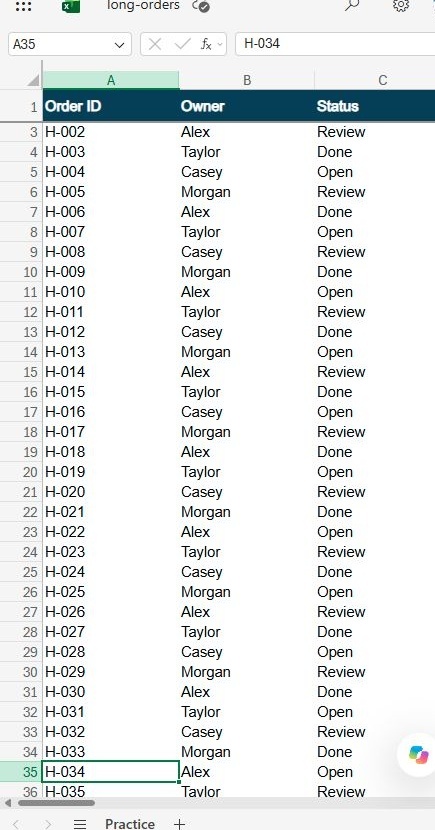
The practice file has forty orders and three columns: Order ID, Owner, and Status. Open it in Excel for the web. Verify row one contains those exact labels, then scroll down until the header leaves the screen. At row thirty-five, the record is H zero-three-four, because the first worksheet row is the header. This confirms the list is long enough for a real before-and-after check.
Checkpoint: Row 1 has labels; 40 fictional orders; Row 35 is H-034.
2. Choose the row-only route
The tested English Excel web menu has a direct Top Row option, so the selected cell does not decide which row is frozen. If your version only offers a generic Freeze Panes command, click A two first: row one is above that cell, and no column is to its left. Selecting B two for the generic command may freeze column A as well. Keep the distinction clear before clicking.
Checkpoint: Top Row is direct; A2 for generic route; Avoid B2 for this task.
3. Freeze the header
On the View tab, open Freeze Panes and choose Top Row. In the tested English Excel web session, the header stayed visible while the sheet scrolled to row thirty-five. If your menu instead offers only generic Freeze Panes, select A two first and use that command. Confirm Order ID, Owner, and Status remain readable at the top while records change below.
Checkpoint: View > Freeze Panes > Top Row; Row 1 remains; Scroll to row 35.
4. Avoid the print-header mix-up
If the labels stay on screen, the freeze worked. It does not guarantee row one repeats on every printed page; that is a separate page-layout feature. If a column also stays fixed and you did not intend it, unfreeze and use Top Row directly, or repeat the generic command from A two. If no header remains, confirm the correct worksheet and check that you did not choose Split panes instead.
Checkpoint: Screen view only; Not print titles; Top Row or A2.
Check the finished result
When you no longer need the fixed row, return to View, Freeze Panes, and Unfreeze Panes. Scroll again: the header can now leave the screen, which proves the setting was reversed. The practice answer is concrete: the three labels were visible beside row thirty-five after freezing and no longer pinned after unfreezing. The underlying order data never changed.
Expected answer: After View > Freeze Panes > Top Row, row 1 remains visible while the sheet scrolls to row 35. The top labels still read Order ID, Owner, and Status. The order IDs run H-001 through H-040; row 35 contains H-034 because row 1 is the header. In menus with only a generic Freeze Panes command, selecting A2 first targets row 1 without a column. Unfreeze Panes removes the locked header behavior. A print-preview repeat-header feature is separate.
If it still fails
If the header disappears while scrolling, confirm you selected View > Freeze Panes > Top Row in the .xlsx workbook. Where only a generic Freeze Panes command appears, select A2 first; B2 can freeze column A too.
Official references
Checked 16 October 2026. On-screen explanatory panels are labelled illustrative diagrams; any separately identified actual capture is a genuine English app view.
Practice downloads.
The exercise files contain invented information. Save a local copy before editing.