
Try the example, then check the result.
Download the fictional material and follow the steps below. The video includes 2 marked screenshots from the English app, with illustrative diagrams for the other steps. Product controls may vary by version.
Check the answer before applying the method to your own data. How we review guides ↗
Watch the complete lesson.
The video includes 2 marked screenshots from the English app, with illustrative diagrams for the other steps. English captions. Product menus may differ in your account.
Quick answer. Open the Comments pane, find the resolved thread, and choose Reopen. Resolving hides a thread from active review; it does not delete its contents.
Use the fictional registration note to create a private Word document, then compare the comment state with the answer check.
Before you start. This exercise needs an editable private document in Word for the web. The Comments pane may place the Reopen icon differently across builds. The actual captures below verify comment controls; your own document-text check remains part of the exercise.
1. Add a safe practice comment
Create a Word for the web document with the fictional registration sentence. Select the sentence and add the practice comment asking to confirm the deadline. Keep the document private. The exact comment text gives you a way to identify the same thread later.
Checkpoint: One comment on one fictional sentence.
2. Resolve, do not delete
Use Resolve thread on the comment. Microsoft says this moves the discussion out of active review while keeping it available for reference. Do not choose Delete thread. Notice that the margin no longer presents the thread as active, but the comment has not been erased.
Checkpoint: Resolved is retained; deleted is removed.
3. Find it in the Comments pane
Open the Comments pane and locate the thread by its text. If your view filters comments, include resolved threads. Read the original practice wording so you know you found the existing thread rather than an unrelated note.
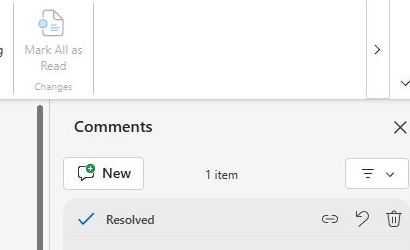
Checkpoint: The thread still says: Confirm the deadline with the coordinator.
4. Reopen the same thread
Choose Reopen on the resolved thread. It should return to active review and allow a reply again. Avoid adding a second comment merely because the first was hidden. If you cannot find it, verify that you are in the correct document and that it was resolved rather than deleted.
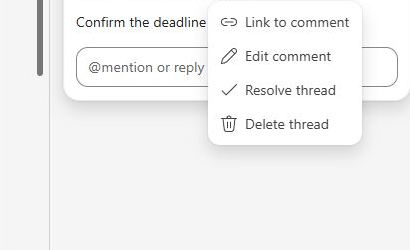
Checkpoint: One reopened thread, not two.
5. Check content and status separately
Confirm the registration sentence still reads Friday. Then check the one comment is active in the Comments pane and remains attached to that sentence. This result verifies both the document text and the review state without publishing or sharing the practice document.
Checkpoint: Sentence unchanged; existing thread active again.
Verify the result
The original sentence remains unchanged. The fictional comment text remains visible in the Comments pane after resolving, disappears from active margin review, and becomes active again after Reopen. No new duplicate thread is created and no comment is deleted.
If it still does not work
If the thread seems missing, open Comments and check whether the view is filtering out resolved comments. Look for the original fictional comment text and its resolved state before using Reopen; creating a new comment would leave the old thread unresolved in the record. If the comment was deleted rather than resolved, it cannot be reopened from the current thread list; use an earlier document version or practice copy.
Official sources
- Word for the web product guidance (checked 16 October 2026).
- Word for the web product guidance (checked 16 October 2026).
Video panels without a marked actual-app capture are illustrative diagrams of the fictional exercise.
Practice downloads.
The exercise files contain invented information. Save a local copy before editing.