
Try the example, then check the result.
Quick answer: In Word for the web's Editing mode, use Ctrl+Shift+V in Chrome, Firefox, or Chromium-based Edge to paste text only. Confirm that the words stay the same while the destination paragraph's style replaces the source formatting.
Download the fictional material and follow the steps below. The video includes 2 marked screenshots from the English app, with illustrative diagrams for the other steps. Product controls may vary by version.
Check the answer before applying the method to your own data. How we review guides ↗
Watch the complete lesson.
The video includes 2 marked screenshots from the English app, with illustrative diagrams for the other steps. English captions. Product menus may differ in your account.
Copy a fictional styled paragraph into Word for the web and use Paste text only to match the destination document. Download the fictional practice and answer check.
Before starting: Microsoft documents Ctrl+Shift+V for Word for the web in Chrome, Firefox, and Chromium-based Edge. Other browsers or read-only mode may behave differently. Plain-text paste can remove links, images, and list structure, so review the resulting paragraph. The demonstration uses only owner-authorized fictional Word practice documents.
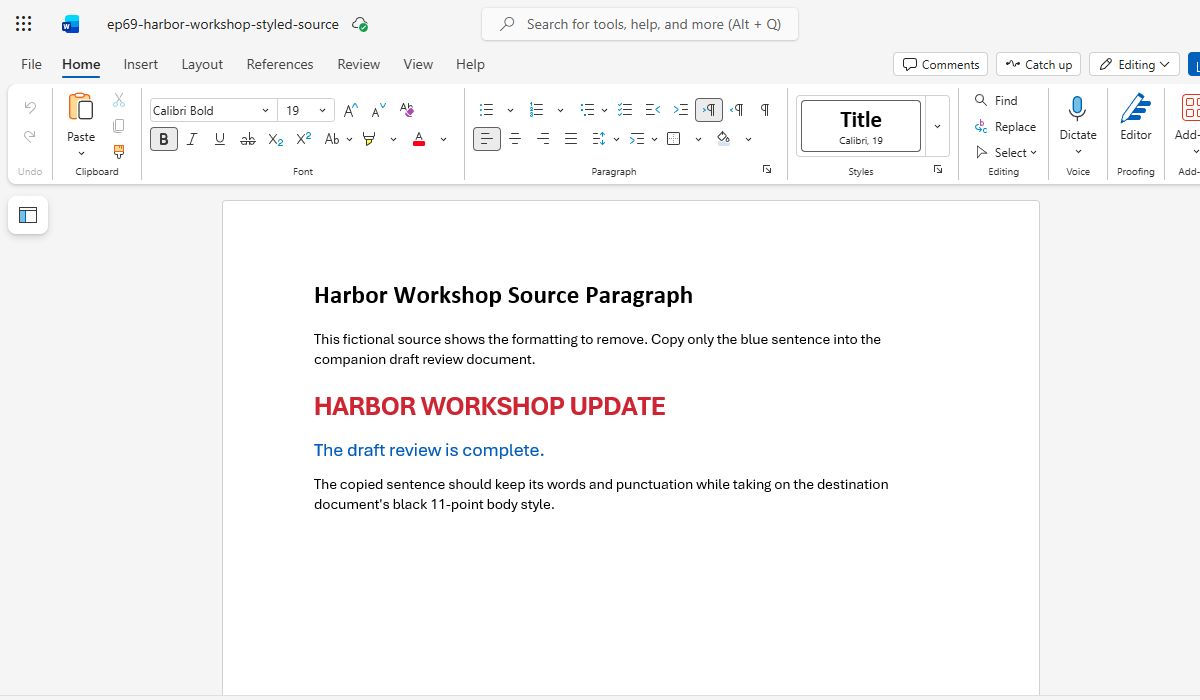
For a reproducible styled source, open the fictional practice page, select only the blue sentence, and copy it into a safe Word practice document.
1. Set up source and destination
The practice file identifies a blue 14-point source sentence and a black 11-point destination paragraph. Create a safe copy of a Word document in Editing mode and place the cursor inside a normal body paragraph. Copy only the sentence, not the heading. Note the destination's existing style before you paste so you can tell whether the result inherited it.
Checkpoint: Blue 14-point source; Black 11-point target; Editing mode.
2. Use Paste text only
In Word for the web on Chrome, Firefox, or Chromium-based Edge, press Ctrl+Shift+V. Microsoft documents this as pasting text without source formatting. The same Paste text only choice can appear in Word's paste menu depending on browser support. Do not use a desktop-only Paste Special dialog in a web tutorial; it may not exist in this interface.
Checkpoint: Ctrl+Shift+V; Supported browsers; No desktop-only dialog.
3. Compare the actual result
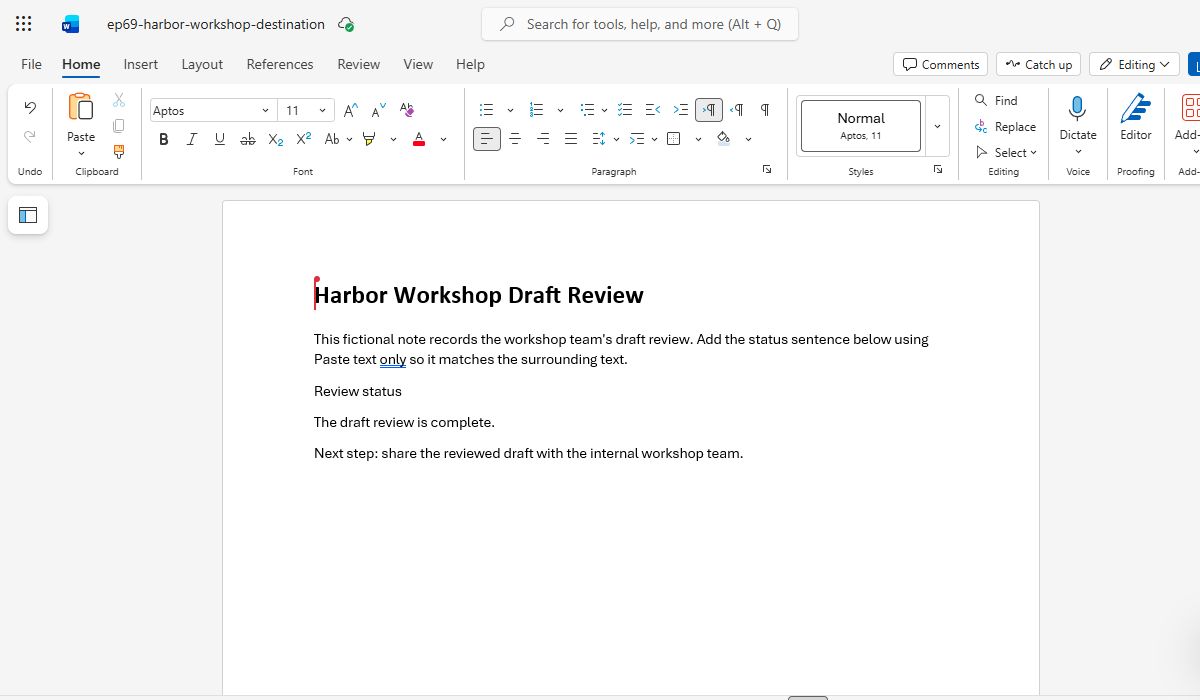
Read the pasted sentence: The draft review is complete. It should retain its words and punctuation while adopting the destination paragraph's font, size, and color. Compare it with adjacent body text. If it still appears blue or larger, inspect the paste option you used and try again in a clean practice copy rather than manually restyling each fragment.
Checkpoint: Words unchanged; No source blue; Matches adjacent text.
4. Understand what gets removed
Plain-text paste discards rich formatting and may remove links, pictures, or list structure. That is useful for a simple paragraph, but it is not a universal replacement for copying a table or illustrated section. If a hyperlink or emphasis was meaningful, add it again in Word after pasting. The practice exercise deliberately uses one ordinary sentence to avoid losing necessary structure.
Checkpoint: Text remains; Rich formatting removed; Reapply meaningful links.
5. Try the supported fallback
If the shortcut does not work, confirm Word is in Editing mode and use the available Paste text only choice in the ribbon or paste menu. Microsoft notes that browser clipboard capabilities differ. A read-only view cannot accept the paste. Do not present a keyboard shortcut as guaranteed on every platform; match the viewer's browser and the current Word web interface.
Checkpoint: Check Editing mode; Try Paste text only menu; Browser behavior differs.
Verify the result
The answer check is the exact sentence in the document's normal body style, without the source's blue color or fourteen-point size. A visible before-and-after comparison proves the formatting changed while the content stayed intact. The practice source is fictional; no private Word page or real client paragraph is needed for the demonstration.
Expected result: The destination contains exactly The draft review is complete. in its own normal body style. The old source color and 14-point size are absent. In supported browsers, Ctrl+Shift+V pastes text only in Word for the web; a ribbon/context-menu option may also be available. Any intentionally meaningful emphasis or link must be reapplied after the plain-text paste.
Official instructions: Word help, checked 15 October 2026. Two English Word for the web captures show the fictional styled source sentence and its black Aptos 11 result after a plain-text paste. The images show the before and after states, not the keyboard event itself; other video panels are illustrative diagrams.
Practice downloads.
The exercise files contain invented information. Save a local copy before editing.