
Try the example, then check the result.
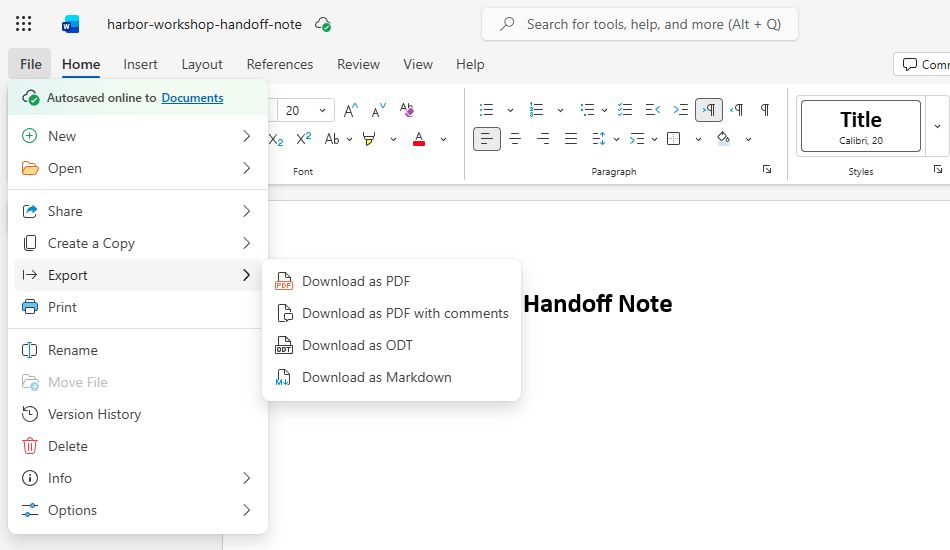
Quick answer: In Word for the web, open File > Export > Download as PDF, then Download. Inspect the downloaded PDF for the title, three fictional checklist items, and one-page layout; the original Word document remains in OneDrive.
Download the fictional material and follow the steps below. The video includes 2 marked screenshots from the English app, with illustrative diagrams for the other steps. Product controls may vary by version.
Check the answer before applying the method to your own data. How we review guides ↗
Watch the complete lesson.
The video includes 2 marked screenshots from the English app, with illustrative diagrams for the other steps. English captions. Product menus may differ in your account.
Quick answer: In Word for the web, open File > Export > Download as PDF, then Download. Inspect the downloaded PDF for the title, three fictional checklist items, and one-page layout; the original Word document remains in OneDrive.
Download a fictional one-page Word for the web note as a PDF, then verify the PDF text and page count without changing the cloud original. Download the fictional practice and answer check. The plain-text source is also available if you prefer to build the note yourself. Compare your export with the expected one-page PDF from the same fictional document.
Before starting: Upload the fictional .docx practice file to OneDrive and open it in Word for the web. The current web route is File > Export. A PDF is a separate downloaded copy, not an irreversible conversion of the cloud document. Choose Download as PDF rather than the comments-included variant for this fictional note. The resulting layout should be checked; complex documents may reflow.
1. Prepare the note
Download the fictional Word practice document. Upload it to your OneDrive, then open it in Word for the web. It already contains Harbor Workshop Handoff Note as the heading and three checklist lines: Owner confirmed, Due date recorded, and Shared links checked. Confirm it is one page before exporting. Do not use a live shared document or customer details for this exercise.
Checkpoint: Open practice DOCX in Word web; Three checklist lines; One page in Word.
2. Choose the web export
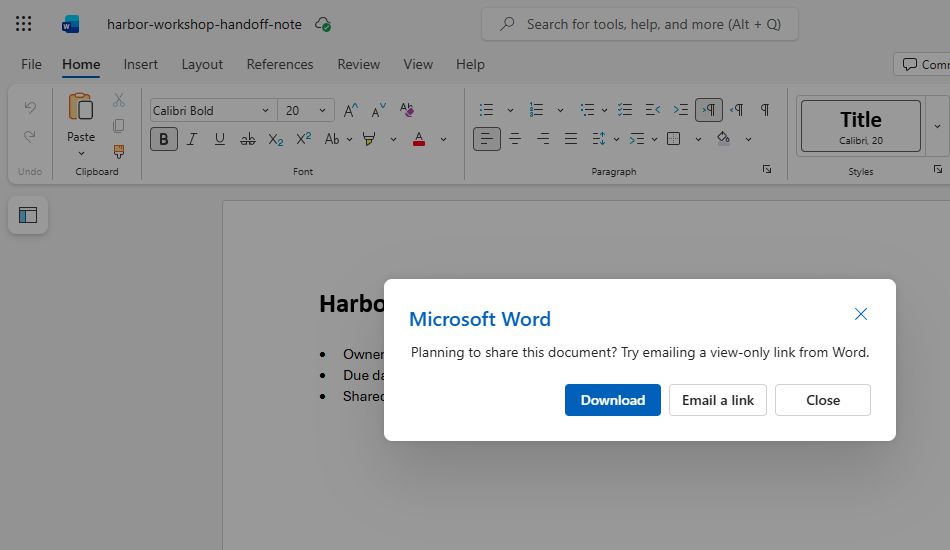
Open File in the top left, then Export. Choose Download as PDF, not the comments-included option, because the fictional note has no review comments to share. Microsoft documents this Word for the web route. Confirm the Download action in the dialog. If your interface shows a different route, verify the current product version before substituting a desktop-app path.
Checkpoint: File > Export; Download as PDF; Confirm Download.
3. Find the downloaded file
Locate the new PDF in your browser's selected download folder. Do not assume that exporting replaced the open Word document. Word for the web auto-saves the original in OneDrive, and the PDF is a separate copy on your computer. Give the PDF a clear file name before passing it to anyone. In this exercise, keep both files private.
Checkpoint: PDF in Downloads; Original still in OneDrive; No public sharing.
4. Inspect the actual PDF
Open the PDF and check its page count. It should be one page. Read the heading and each of the three checklist lines, then compare it with the expected PDF in the companion guide. Look for clipped text or an unexpected blank page. A download notification is not a visual-quality check. If the PDF reflowed, return to the Word source, correct spacing or margins, and export a fresh copy.
Checkpoint: One page; Title visible; Three items complete.
Check the finished result
Return to Word for the web and confirm the original practice document is still present and editable. The final answer has two parts: a readable one-page PDF and an unchanged cloud source. If you later need comments in the PDF, select the documented comments-included export intentionally; do not assume the normal PDF includes them.
Expected answer: The exported PDF is one page and contains the title Harbor Workshop Handoff Note plus the three checklist items Owner confirmed, Due date recorded, and Shared links checked. Compare it with the included expected PDF exported from the same fictional DOCX in Word for the web. The original Word document remains editable in OneDrive. If your PDF has two pages or clipped text, fix the source layout and export again; do not treat a successful download as proof the PDF is correct.
If it still fails
If no PDF arrives, confirm the fictional .docx is open in Word for the web, use File > Export > Download as PDF, and complete the separate Download confirmation. Check the browser's downloads before repeating the export.
Official references
Checked 16 October 2026. On-screen explanatory panels are labelled illustrative diagrams; any separately identified actual capture is a genuine English app view.
Practice downloads.
The exercise files contain invented information. Save a local copy before editing.